Task Manager: An AI Agent That Turns Emails Into Trackable Work
- Purvish Shah
- My Projects
- 19 Sep, 2026
Shared mailboxes are common in many organizations. They are useful because multiple people can monitor the same inbox, respond to requests, and keep communication flowing. But as message volume grows, shared mailboxes can also become difficult to manage.
When requests arrive through email, teams often struggle to answer simple operational questions:
- Who is working on this request?
- Has this message already been handled?
- Which emails require follow-up?
- What is the current workload by team member or mailbox?
- Which request types are recurring most often?
- Where are the bottlenecks?
I designed a generic AI-powered task manager workflow that turns inbound shared-mailbox emails into structured, trackable work items.
The goal is not to replace people. The goal is to help teams move from inbox-driven coordination to a more transparent task-management process.
The Problem
Many teams rely on shared mailboxes for client requests, operational questions, sales follow-ups, support messages, internal approvals, vendor coordination, and other recurring workflows.
This operating model creates several challenges:
- Lack of ownership: Team members may not know who is actively handling a request.
- Duplicate effort: More than one person may start working on the same email.
- Delayed responses: Important messages can sit in the inbox without a clear owner.
- Limited workload visibility: Managers may not have a real-time view of volume, capacity, and response patterns.
- No structured analytics: Email content remains unclassified, making it hard to identify trends and process improvement opportunities.
The underlying issue is that the inbox is being used as both the intake channel and the tracking system. Email is good for communication, but it is not ideal for task ownership, reporting, or workflow analytics.
The Solution
The proposed solution uses Power Automate, Azure OpenAI, SharePoint, and Microsoft Teams to transform incoming emails into structured task records.
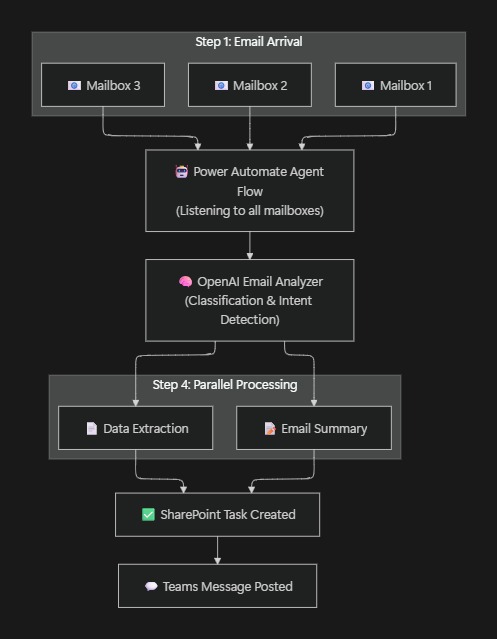
At a high level, the workflow:
- Monitors one or more shared mailboxes.
- Extracts email metadata and message content.
- Cleans and normalizes the email body.
- Uses AI to classify the message and determine whether action is required.
- Extracts structured fields such as category, priority, client or requester name, region, and confidence score.
- Creates a SharePoint task item when follow-up is required.
- Sends a Microsoft Teams notification so the right team can respond quickly.
- Enables dashboards and reporting from the structured task list.
Step 1: Dedicated Flow per Shared Mailbox
Instead of one large flow listening to every mailbox, each shared mailbox can have its own Power Automate flow.
For example:
Client-Requests-Mailbox-FlowSales-Follow-Up-Mailbox-FlowOperations-Support-Mailbox-Flow
When an email arrives, the flow captures:
- Subject
- Body
- Sender
- Attachments
- Message ID
- Mailbox source
The message ID becomes a useful correlation key. It can help prevent duplicate task creation and make it easier to trace a task back to the original email.
Step 2: Normalize and Prepare the Email
Before sending the message to an AI model, the workflow prepares the email content.
This step can include:
- Converting HTML email to plain text
- Removing signatures
- Removing disclaimers
- Removing quoted replies or repeated email-chain content
- Initializing variables such as mailbox name, subject, body, sender, and message ID
- Tagging the message with mailbox or routing context
This cleanup step improves classification quality and reduces unnecessary model input.
Step 3: AI-Powered Classification and Intent Detection
Azure OpenAI analyzes the cleaned email and returns structured results.
The AI layer can be asked to:
- Detect the sender’s intent
- Classify the business category
- Assign priority such as high, medium, or low
- Generate a concise summary
- Determine whether action is required
- Extract requester or client metadata when available
- Produce a confidence score
The workflow should use a structured response format so downstream steps can reliably map model output into SharePoint fields.
Step 4: Parallel Processing
After AI analysis, the flow can split into parallel branches for efficiency.
Branch A: Summary Preparation
This branch prepares a concise human-readable summary that can be used in task descriptions, Teams notifications, and dashboards.
Branch B: Structured Data Extraction
This branch prepares structured fields such as:
- Category
- Priority
- Required action
- Requester or client name
- Region
- Source mailbox
- Confidence score
Separating summary generation from structured extraction makes the workflow easier to test and maintain.
Step 5: SharePoint Task Creation
If the AI determines that an action is required, Power Automate creates an item in a SharePoint task list.
Example list name:
AI Email TasksExample field mapping:
| SharePoint Column | Value |
|---|---|
| Title | Email subject |
| Description | AI-generated summary |
| Category | AI-detected category |
| Priority | AI-detected priority |
| Requester or Client Name | Extracted name |
| Region | Extracted region |
| Source Mailbox | Mailbox name |
| Sender | Email sender |
| Status | New |
| Confidence Score | AI confidence score |
| Correlation ID | Email message ID |
The SharePoint list becomes the operational system of record for work items created from email.
Step 6: Microsoft Teams Notification
After the SharePoint task is created, the workflow posts a Microsoft Teams message to the relevant channel or group.
The notification can include:
- Task title
- Priority
- Category
- Summary
- Link to the SharePoint task item
- Source mailbox
- Sender
This gives the team immediate visibility without requiring everyone to constantly monitor the shared mailbox.
Why This Design Helps
The workflow creates value because it separates communication from work tracking.
Email remains the intake channel, but SharePoint becomes the structured task tracker. Microsoft Teams becomes the notification layer. AI becomes the classification and extraction layer.
This design helps teams:
- Improve ownership and accountability
- Reduce duplicate work
- Identify urgent requests faster
- Track workload by mailbox, category, priority, and team
- Build dashboards for leadership
- Identify recurring request patterns
- Find bottlenecks and process improvement opportunities
Governance and Human Review
AI should support the workflow, not silently make final business decisions.
A practical implementation should include:
- Confidence thresholds for automated task creation
- Manual review for low-confidence classifications
- Clear status values such as new, assigned, in progress, blocked, and completed
- Audit fields that preserve the source mailbox and message ID
- Access controls for the SharePoint task list
- Monitoring for failed flows or malformed AI responses
This keeps the workflow explainable and operationally safe.
What This Project Demonstrates
This project shows how a common enterprise problem can be improved without asking users to abandon familiar tools.
The workflow brings together:
- Power Automate for orchestration
- Shared mailboxes for intake
- Azure OpenAI for classification and extraction
- SharePoint for structured task tracking
- Microsoft Teams for notifications
- Reporting-ready metadata for dashboards
The larger lesson is that many AI opportunities start with a simple operational question:
What important work is currently hidden inside email?
Once email is converted into structured tasks, teams can manage work with more clarity, respond faster, and build better analytics from the process they already use every day.